Setting Preferences
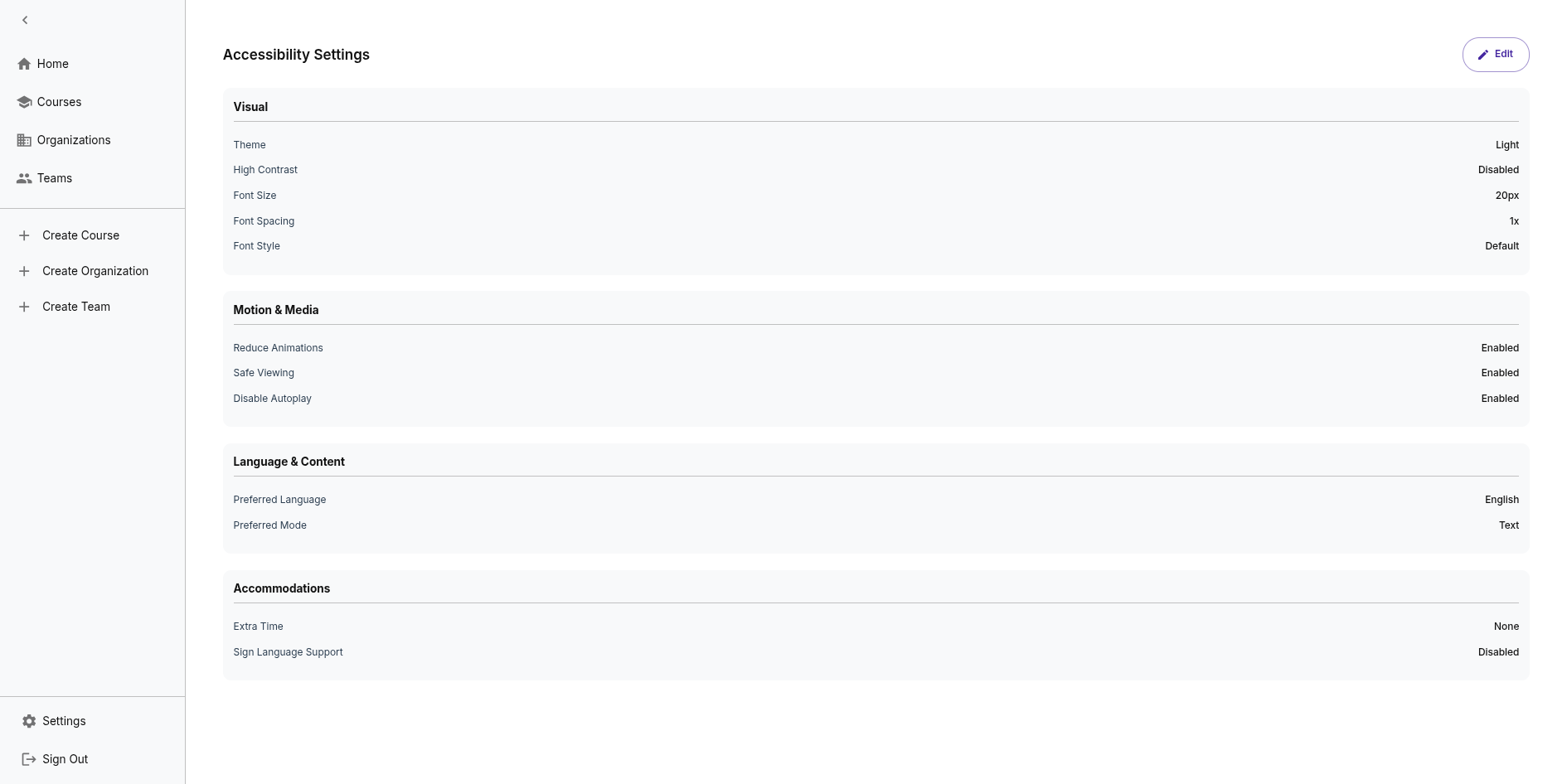
Learn how to configure your accessibility preferences in IncLearn.
Accessing Preferences
- Click on your profile icon
- Select "Settings" or "Preferences"
- Navigate to "Accessibility"
Theme Settings
Visual Theme
Choose your preferred theme:
- Light - Standard light appearance
- Dark - Dark theme for low light
- High Contrast - Maximum contrast
Font
- Font Family - Default or OpenDyslexic
- Font Size - Adjustable (Small, Medium, Large, Extra Large)
Language Settings
Interface Language
Choose your preferred interface language:
- English
- Tamil (தமிழ்)
- Hindi (हिन्दी)
- Malayalam (മലയാളം)
Content Language
Set your preferred language for translated content.
Learning Preferences
Preferred Mode
Select your primary learning format:
- Text
- Sign Language
- Document
- Image
- Audio
- Video
Safe Viewing
Enable safe viewing mode to filter content that may trigger photosensitive epilepsy.
Animation Settings
Reduced Animation
Enable to minimize motion effects throughout the platform.
Disable Autoplay
Prevent videos and audio from playing automatically.
Accommodations
Request Accommodations (to be enforced with test and assignment submission integration)
Specify any additional accommodations you may need:
- Extra time for assessments
- Sign language support
- Other accessibility needs
Saving Preferences
Your preferences are saved automatically and applied across all your sessions and devices.